

Tumpixel
Tumpixel
User Dashboard & Profile Guide
After logging in, you will be taken to the Dashboard, where you can access all main features of the platform.
The Dashboard is your central control panel. From here, you can quickly navigate to:
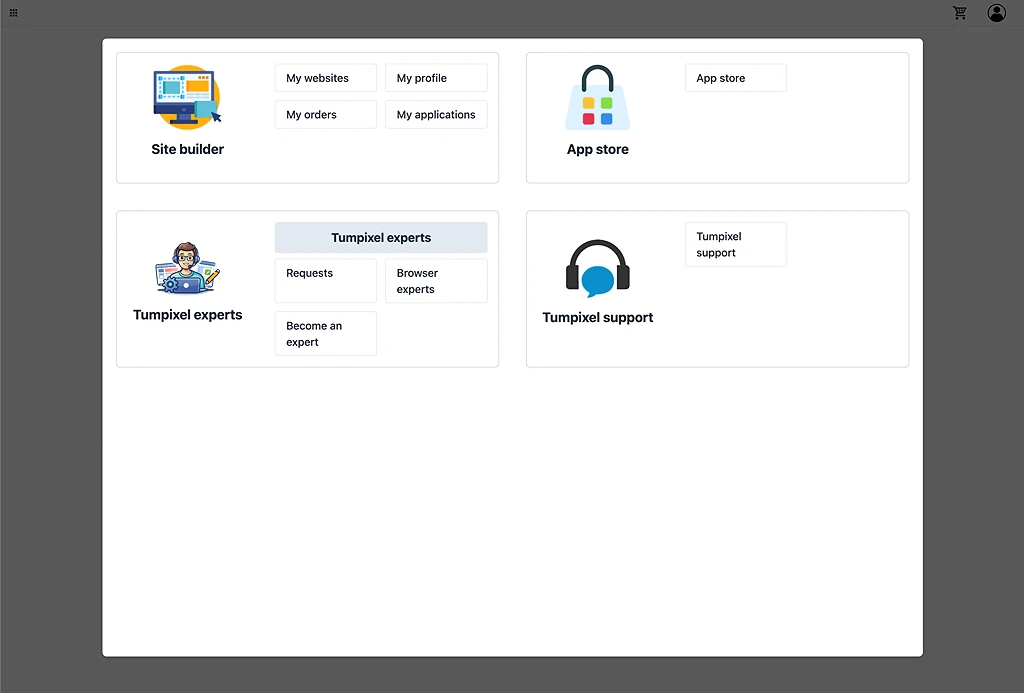
🧱 Site Builder
My websites → Manage and edit your websites
My profile → Update personal information
My orders → View purchases and subscriptions
My applications → Manage installed modules
🛍 App Store
Browse available applications (modules), component templates, page templates, website templates.
🧑💻 Tumpixel Experts
Submit requests for expert help
Browse available experts
Apply to become an expert
🎧 Tumpixel Support
Contact support team
Get help with technical issues
👤 Profile Menu
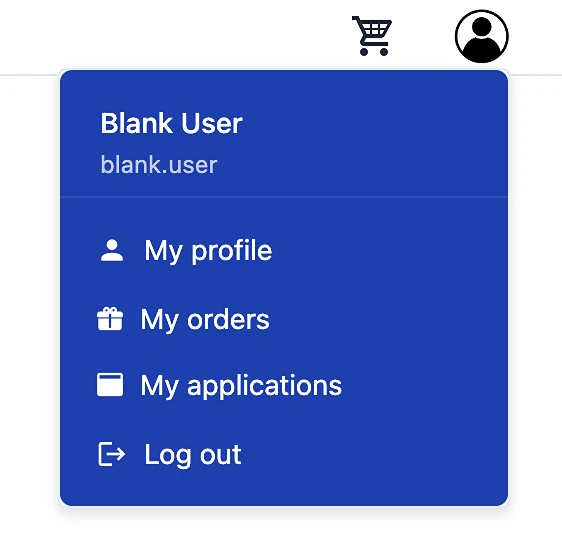
Click the profile icon (top right) to open the menu:
My profile → Manage account settings
My orders → View your orders
My applications → Manage purchased apps
Log out → Sign out of your account
🛒 Cart
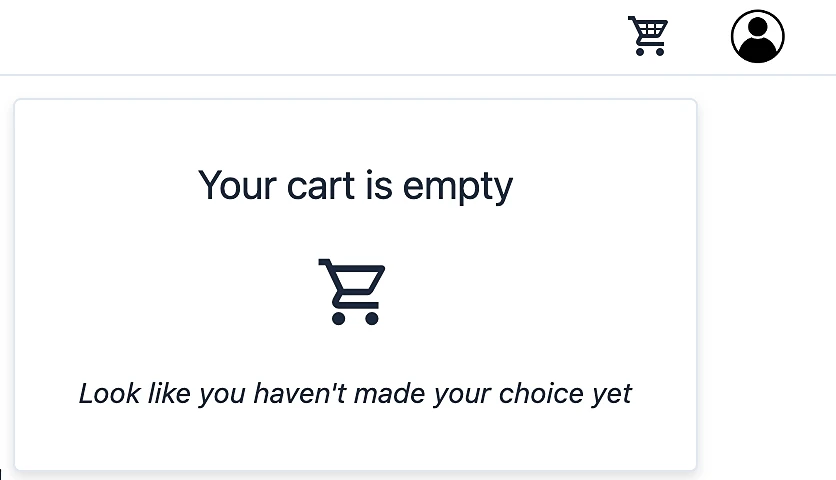
Click the cart icon to view your cart.
If empty → “Your cart is empty” message
Add apps from App Store to proceed
⚙️ My Profile
Inside My Profile, you can manage your personal settings.
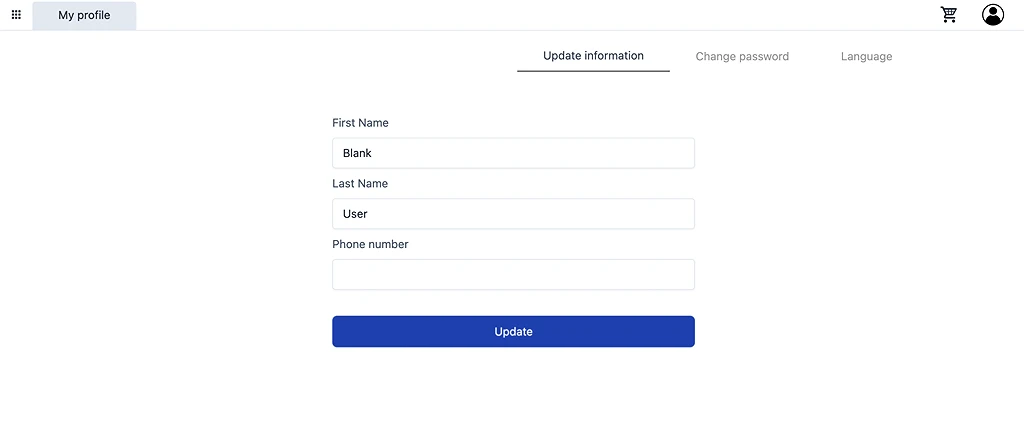
1. Update Information
Update your basic information:
First Name
Last Name
Phone Number
Click Update to save changes.
2. Change Password
To change your password:
Enter your old password
Enter a new password
Repeat the new password
Click Update to confirm.
3. Language Settings
Choose your preferred application language:
Select from available languages
The interface will update automatically
💡 Tips
Keep your profile information up to date
Use a strong password to protect your account
Set your preferred language for better experience
❓ Troubleshooting
I can’t update my profile
Check required fields
Ensure no validation errors
I can’t change password
Make sure old password is correct
Ensure new password meets requirements
Language not applied
Refresh the page
Try selecting again